
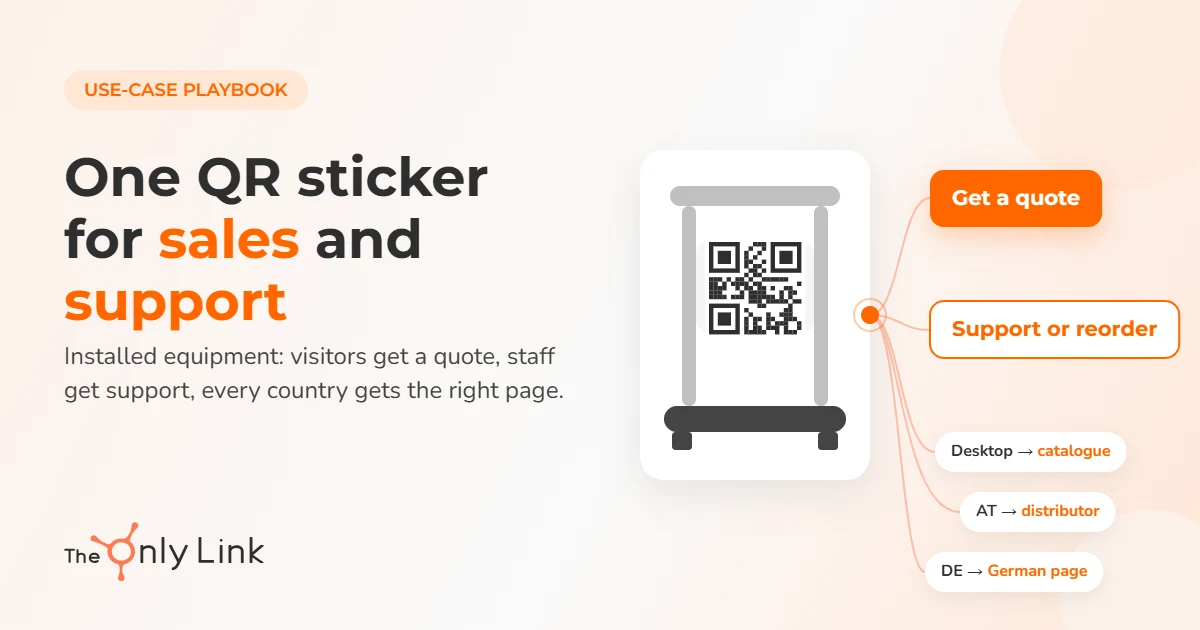
This playbook is for makers and distributors of school and office furniture, gym equipment and other products installed in public places, where every visitor is a possible buyer and every member of staff may need support. One dynamic QR code sticker from TOL opens a page in the scanner’s language with two clear choices: “Get a quote” for visitors and “Support or reorder” for staff, and it sends people in distributor countries to the local partner. You then track scans by country, language and device, and how many turn into quote requests and support contacts.
Key facts
| Best for | Makers and distributors of school furniture, office furniture, gym and fitness equipment, playground and public-space products |
|---|---|
| Languages | English as the default page, plus a page for each language you sell in |
| What to measure | Scans by country and language, visits from the printed short link, quote requests and support contacts that started with a scan, scans per code over the years |
Rule set
Each row is a separate Smart Redirect attached to the code. TOL checks them in the order they were created and stops at the first match, so create them in the order below. The fallback is the code’s standard link.
| # | Condition | Destination | Reason |
|---|---|---|---|
| 1 | Device/OS = Desktop | Catalogue page on your website with the quote form, spare-parts reorder and support portal | People who type the short link from a manual, invoice or delivery note are usually buyers or facility managers at a desk |
| 2 | Location = a country where you sell through a distributor (e.g. Austria) | The distributor’s page, with their contact details | Quotes and service in that country go through the local partner. Add one redirect per distributor country |
| 3 | Locale = a language you support (e.g. German) | Your page in that language: “Get a quote” and “Support or reorder” | People read and fill in forms faster in their own language. Add one redirect per language |
| — | Fallback (the code’s standard link) | English page with “Get a quote” and “Support or reorder” | Everyone else still reaches a quote form and support |
After printing: when you sign a new distributor, add a language or move your quote form, you add or edit a redirect in TOL, and every sticker already installed follows the change.
Before
Makers usually print a static QR code or a web address that opens the homepage, so visitors who like a bench or a treadmill have to search for a contact form, and staff have to search for support. Some print two codes, one for sales and one for service, which takes space and confuses people. When a distributor changes or a page moves, the only fix is a new sticker, and on installed equipment that means sending someone to every site.
Reprinting vs changing a rule
| Replacing static stickers | Changing a TOL rule | |
|---|---|---|
| What you pay for | New stickers × every installed product, plus travel and staff time to visit each site | Your TOL plan: Pro €9/month or Premium €19/month |
| Time to go live | Weeks or months, depending on how many sites you have | Seconds after you save the rule |
| Wrong destination in the meantime | Yes, on every sticker not yet replaced | No |
You print the stickers once. What you save is every visit to replace them later.
Static code, two codes or one TOL code
| Static QR code | Two codes (sales + service) | One TOL dynamic QR code | |
|---|---|---|---|
| Change destination after installation | No | No | Yes |
| Sends people to a local distributor | No | No | Yes, by country |
| Opens a page in the scanner’s language | No | No | Yes |
| Space on the product | Small | Twice as much, and confusing | Small |
| Scan reports | None | Only with extra tools | Built in |
How to set it up
Where the code goes: somewhere people see it when they use or look at the product, at eye or hand height, away from parts that get scratched or cleaned hard: the frame of a treadmill near the console, the side of a desk or the back of a chair, the base of playground equipment. Use a durable, weatherproof sticker or a printed plate, because it will stay on the product for many years.
What the sticker says: the page adapts to the phone’s language, but the printed caption doesn’t. Print it in the language of the country where the product is installed (for example “Gefällt Ihnen das? Angebot anfragen. Personal: Service und Nachbestellung” in Germany), or use simple icons for “quote” and “support”.
Print the short link in your documents too: put the code’s short link in manuals, invoices, delivery notes and service stickers. Buyers and facility managers who type it on a computer get the catalogue page (rule 1). That way, one address does the job everywhere.
Call support in one tap: on the support button, use a tel: link, so staff who scan the code start a call straight away. Show your support hours next to the phone number on the page.
How many codes: one code per product line is usually enough, and you can compare product lines in each code’s statistics. Keep it to a handful: each code needs its own redirects, so every change has to be made on every code.
Pages and plans: the Pro plan includes 100 smart links/QR codes and 5 bio pages, enough for an English page and up to four language or distributor pages (the catalogue page sits on your own website). More languages or distributors usually need Premium, with 300 links and 15 bio pages.
The rules in plain words: people on a computer get the catalogue. People in a distributor country get the distributor. Everyone else gets the page in their phone’s language, or the English page.
Step by step in TOL
- Prepare the pages: the English page with “Get a quote” (form) and “Support or reorder” (
tel:link and reorder form), a page for each language, the distributor pages and the catalogue page on your website. - Add UTM tags to the links on those pages, so your web analytics can tell scan traffic apart from other visits.
- Connect your own domain (Premium only): in your account settings, add an A record for a domain such as go.yourbrand.com, before you create any codes, so every sticker is printed with your domain.
- Create the code and set its standard link to the English page. This is the fallback.
- Add the Smart Redirects in the order of the rule table: Desktop, then distributor countries, then languages.
- Design the QR code with your logo and colours, and add the caption in the local language or icons.
- Test on a separate test code with the same redirects: scan with an iPhone and an Android phone set to different languages, and type the short link on a computer. Keep the live code untouched.
- Print the stickers, and add the short link to manuals, invoices and delivery notes.
- Check your destination pages regularly. TOL sends people where you tell it to, but it can’t see if a form breaks or a page is removed.
- Keep your plan paid for as long as the stickers are in use (see the FAQ below).
What to measure
- Scans by country and language. Shows where your installed products create interest, and which languages are worth a page of their own.
- Visits from the printed short link (desktop). Shows how often buyers and facility managers use the address from manuals and invoices.
- Quote requests from scans. Count them with UTM tags in web analytics. This is the sales value of the sticker.
- Support contacts and reorders from scans. Shows how much service traffic the sticker handles, so you can plan support staff and spare parts.
- Scans per code over time. Shows which product lines draw most interest and whether stickers are still used years after installation.
FAQ
Can one QR code on equipment send buyers to a quote form and staff to support?
Yes. The code opens one page with two buttons: “Get a quote” for visitors and “Support or reorder” for staff. With TOL rules, the same code also opens the page in the scanner’s phone language, sends people in distributor countries to the local partner, and shows the full catalogue to anyone who types the short link on a computer.
Where should the QR sticker go on gym or school equipment?
Where people look while they use the product, at eye or hand height: near the console on gym machines, on the side of a desk or the back of a chair, on the base of playground equipment. Avoid parts that get scratched or cleaned hard, and use a durable, weatherproof sticker or plate.
Can the QR code start a call to support?
Yes. Put a tel: link on the support button of the page behind the code, so staff can call in one tap. Show your support hours next to the number.
Who owns the codes on installed equipment?
You do. The codes keep working for as long as your TOL plan is paid. If a payment is missed, there is a 30-day grace period; after that, the codes open the TOL homepage. On the Premium plan you can connect your own domain with an A record in your account settings, so the printed address, such as go.yourbrand.com, belongs to you, not to a service.
Can I change where a QR code goes after it’s printed?
Yes. The printed code holds a TOL short link, so when you change a destination in TOL, every printed code follows the change. TOL only controls where people are sent, so test your own pages after every change: if a page is removed and returns a 404 error, TOL can’t know that and people will see the error.
Related pages
- How it works: Smart routing
- Plans and prices: Pro and Premium · Custom domains